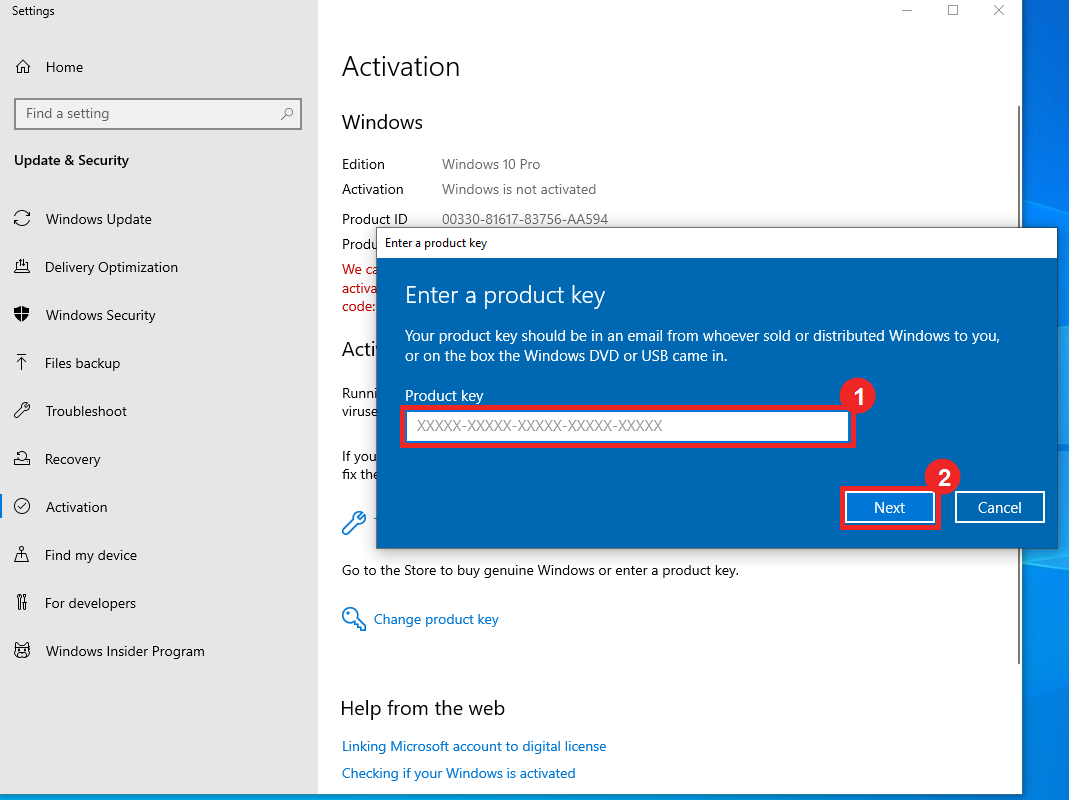
Product key
Windows key activation
Enter your key from Settings and check that the Windows edition matches your purchase.
Open guideThese instructions match the flows used on Delta private order pages.
Enter your key from Settings and check that the Windows edition matches your purchase.
Open guide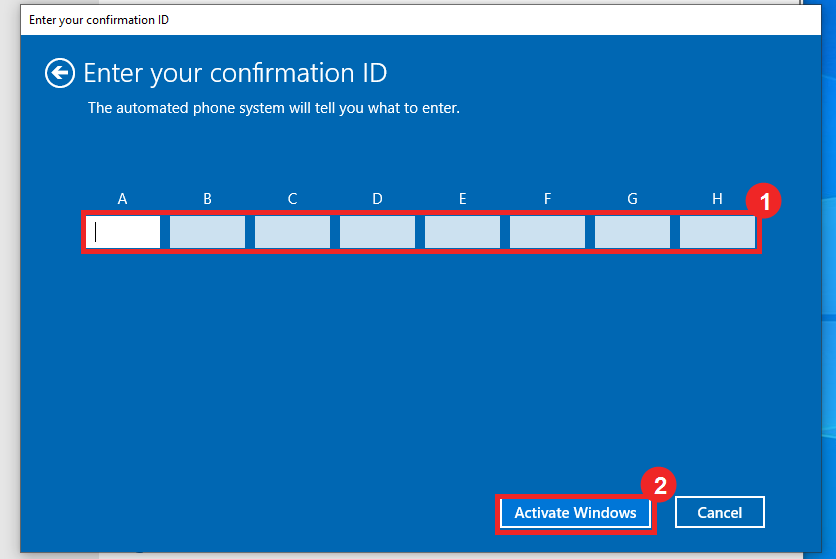
When Windows asks for phone activation, submit the Installation ID and enter the Confirmation ID.
Open guide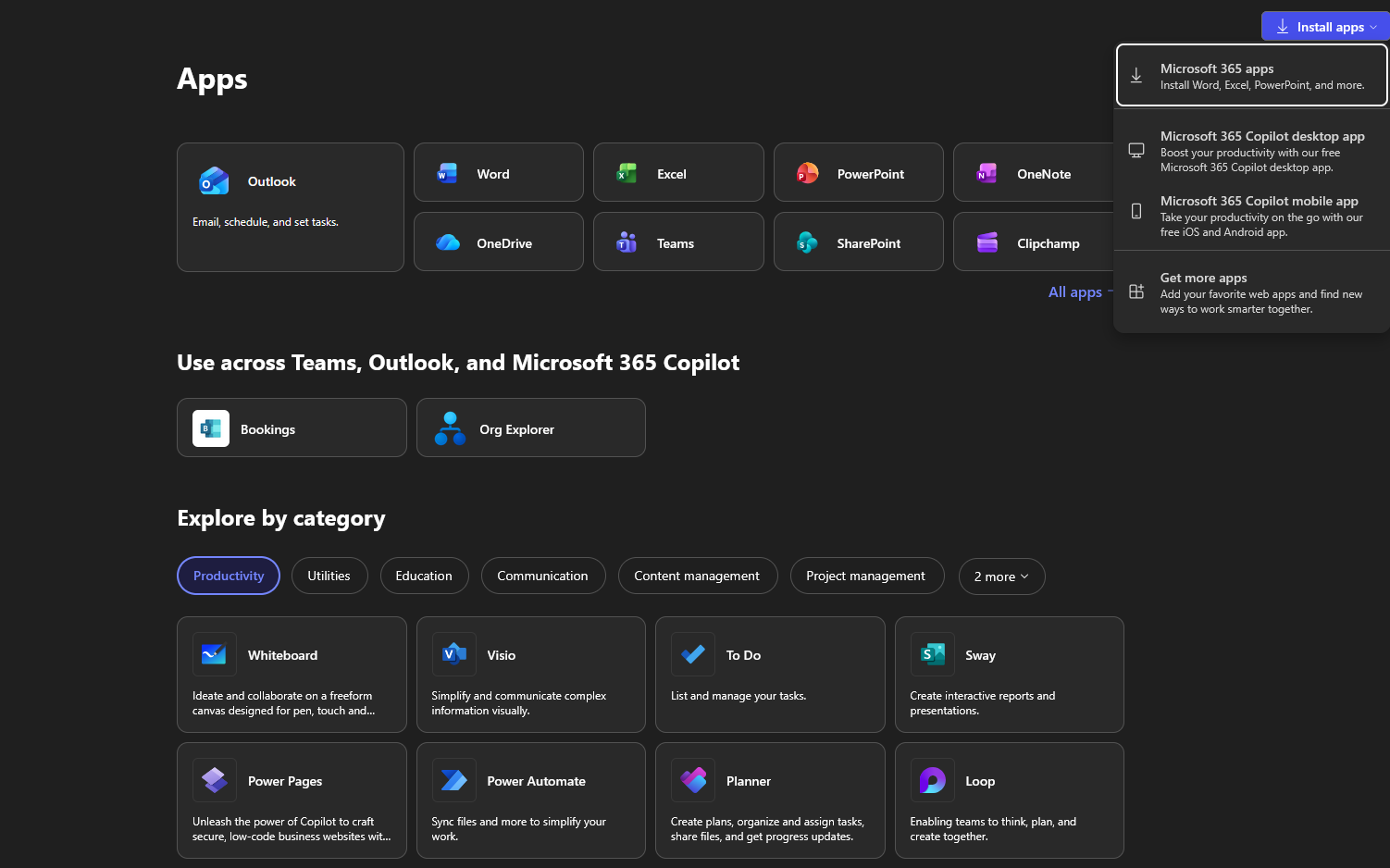
Sign in with your new account, change the temporary password, and install Office apps.
Open guideMost activation issues come from edition mismatch, skipped phone activation steps, or expired private order links.
A Pro key will not activate Home, and an Office key will not activate Windows. Match the product name on your order page.
The Confirmation ID is tied to the Installation ID on that screen. If you restart the flow, send the new Installation ID.
After first sign-in, Microsoft may ask you to update the password. Save the new password because Delta cannot see it.
Your delivery link contains the key, account details, and activation tools. Keep it private and do not share screenshots with the full key.